
If you work with SSRS Reports, specially duplicating out of the box ones, you will probably have to deal with the parameters errors after restoring a dataset. This quick post will help you understand why is this happening and how to fix it, as it may not be straightforward and the errors are not self-explanatory.
Repro steps:
In the reports we have 3 set of parameters; at dataset level, report level and inner design level. The Dataset parameters refer to the report parameters, and if an error happens there, it will be thrown at build time, and it shouldn’t be hard to fix reading the error description. However, the Report itself and the design must have the same number of parameters and when that is violated you will get an error in deployment time, this is the error that made me loose a lot of time and the target of this post.
So, let’s say we’ve duplicated the VendInvoiceDocument out of the box report:

We have the following parameters (they are created automatically from the DataSet contract class):

Now, we click on restore and we’ll see parameters, for example CreatedTransactionId that are going to be added.

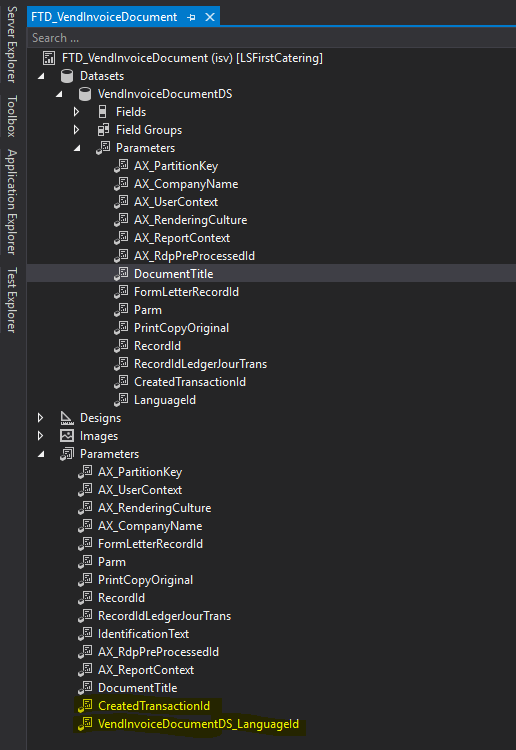
If we have modified the design prior to the restore, the inner cell definitions parameters of the design may not be updated, and when we try to deploy the report…
An error occurred while deploying the report […] The number of defined parameters is not equal to the number of cell definitions in the parameter panel.

As we mentioned, if you see this error it is because there is a mismatch between Report parameters and the parameters included into the Design. This error is very annoying, but there’s a way you can add the missing cell definition to the report design, updating directly the xml file (in my case using the notepad++ in administrator mode).
Basically once you have detected the new added parameter after the last restore, in this example we are going to see how to add the CreatedTransactionId (you can identify them by comparing with the standard out of the box report), we can use as a guide another parameter that we know it was there before the restore, and compare inside the xml, to see where the CreatedTransactionId is missing. You’ll find that at the end of the file, in the CellDefinitions of the design our guide parameter will be there but the recently added parameter won’t:

So… let’s do some surgery and add it carefully following the format (note the column index field that it is incremental):

You’ll have to add all the Report parameters that are missing in the cell definitions, in my case had to add CreatedTransactionId and VendInvoiceDocumentDS_LanguageId… Et voilà!

Now your report is deployed and you’ll be able to use the parameters in your design without worrying about them anymore. Hope it helped!
 Fernitudela.dev